 Insta360
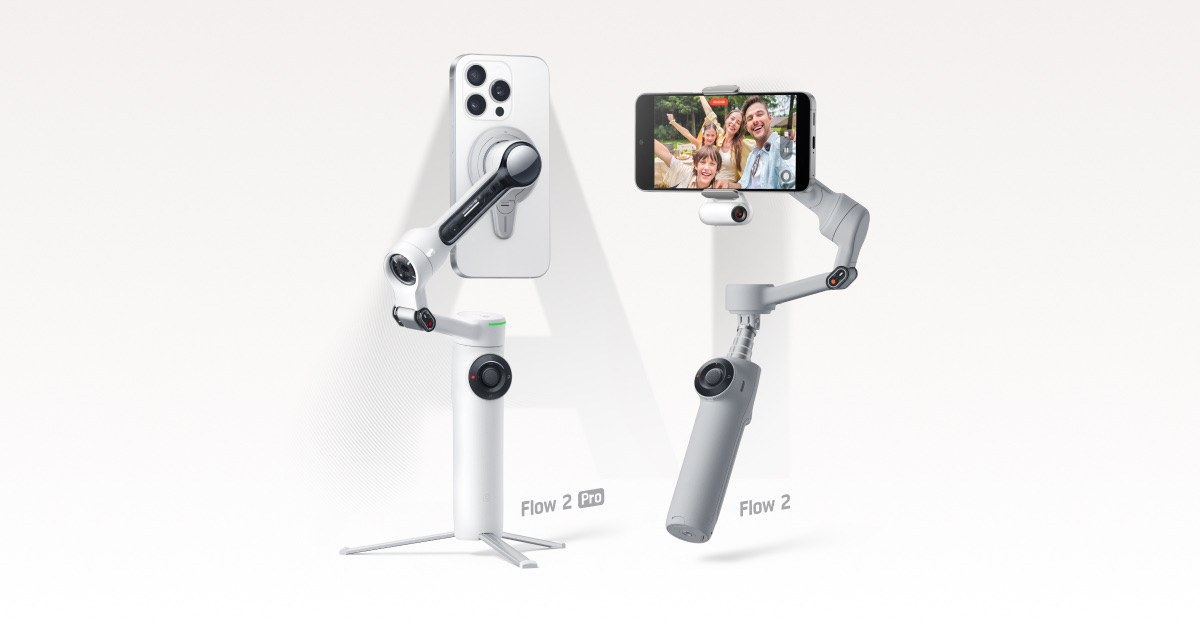
Insta360 Flow 2 Pro
This is the ultimate all-in-one stabilizer for the frequent traveler or content creator who values a compact, always-ready kit with phenomenal battery life, but mainstream phone users with the largest devices should verify compatibility first.
Documentation
User Manual
Read the Insta360 Flow 2 Pro Manual
Setup, features, troubleshooting — formatted for web reading
Highlights
Why it stands out
Best-in-Class
All-day battery life
You can shoot for an entire day of travel or an event without hunting for a power bank.
Major Upgrade
Pocketable, built-in tripod
It folds down small enough for a jacket pocket and has a tripod ready in seconds, so you're always prepared for a shot.
One-handed magnetic mounting
Snap your phone on and off the gimbal instantly, making switching between gimbal and handheld shots seamless.
Built-in selfie stick
Get higher angles and more dynamic shots without carrying a separate, awkward accessory.
Pros & Cons
The good and the bad
Pros
- Forget about battery anxiety with a massive 10-hour runtime for all-day filming.
- Its compact, folded size and built-in tripod mean it's a true grab-and-go stabilizer.
- The magnetic clamp makes setup and teardown nearly instantaneous, reducing missed moments.
- The extended mechanical range allows for creative, dramatic angles beyond basic stabilization.
- USB-C charging is universal and relatively quick, topping up in about 2 hours.
Cons
- The total system weight (gimbal + clamp) is nearly 400g, adding noticeable heft to your pocket or bag.
- Phone compatibility is limited; modern large 'Pro Max' or Ultra phones may be too wide, thick, or heavy.
- Performance may be hampered in very cold conditions (below 14°F), limiting winter outdoor use.
Reference
Specifications
Battery Capacity2900mAh
Battery Life10 hours
Full Charge Time2 hours
Weight366g
DimensionsFolded: 79.6x162.1x36mm | Unfolded: 73.6x269.4x69.9mm
Min Temp-10℃
Max Temp40℃
BluetoothBluetooth 5.0
USBUSB-C
NFCYes
Sourced from Insta360 official documentation.
FAQ
Common Questions
How long does it take to charge the Insta360 Flow 2 Pro?
The Insta360 Flow 2 Pro charges from 0% to 100% in 80 minutes. This measurement was taken at 77°F (25°C) using a 10W charger. The battery level indicator lights will show the charging progress.
Can I use the Insta360 Flow 2 Pro as a power bank?
Yes, the Insta360 Flow 2 Pro can be used as a power bank. Connect your phone to the 'OUT' Type-C port on the arm. If the gimbal is powered off, press the Power/M Button to start charging your phone. If the gimbal is already on, it will start charging automatically. The 'IN' port on the handle is for charging the gimbal itself.
How do I charge the Insta360 Flow 2 Pro?
Use the included Type-C cable to connect to the 'IN' Port on the handle of the Insta360 Flow 2 Pro. The battery level indicator lights will change during charging, and a solid light means charging is complete. The gimbal can be used while charging. Remember, the 'OUT' Port on the arm is for power output to charge other devices.
How do I attach my phone to the Insta360 Flow 2 Pro?
First, extend the Magnetic Phone Clamp around the middle of your phone, ensuring the phone's camera faces the direction marked on the clamp. Then, align the magnetic notch on the clamp's back with the raised bump on the gimbal and match the clamp's magnetic groove with the red dot (Magnetic Alignment) on the gimbal to securely attach it. Always attach the clamp to the phone before mounting it on the gimbal.
How do I activate the Insta360 Flow 2 Pro for the first time?
Download the Insta360 app, enable Wi-Fi and Bluetooth on your phone, and open the app. A pop-up should show 'Discover New Devices'. Select your device (named 'Flow 2 Pro **' where ** is the last six digits of the serial number) and follow the on-screen instructions to connect and activate. The app will prompt for a firmware update if available; do not power off the gimbal or exit the app during the update.
💡
Share a tip
Help others get more out of this product
💬
Ask a question
The community and AI are here to help
⭐
Write a review
Share your honest experience
More to explore
You might also like
Editorial summary, highlights, pros and cons are AI-assisted and reflect Pindear’s independent perspective. Always verify critical details with the manufacturer before purchase. Spotted an error? Let us know.